new firmware · v1.14

firmware 1.14.our biggest update so far.

Firmware 1.14 brings ten new features to drumbeam, among them sequences on a single zone and bank select on the device itself. It’s a free update over USB-⁠C.

01sequence mode

a bass line on one zone.

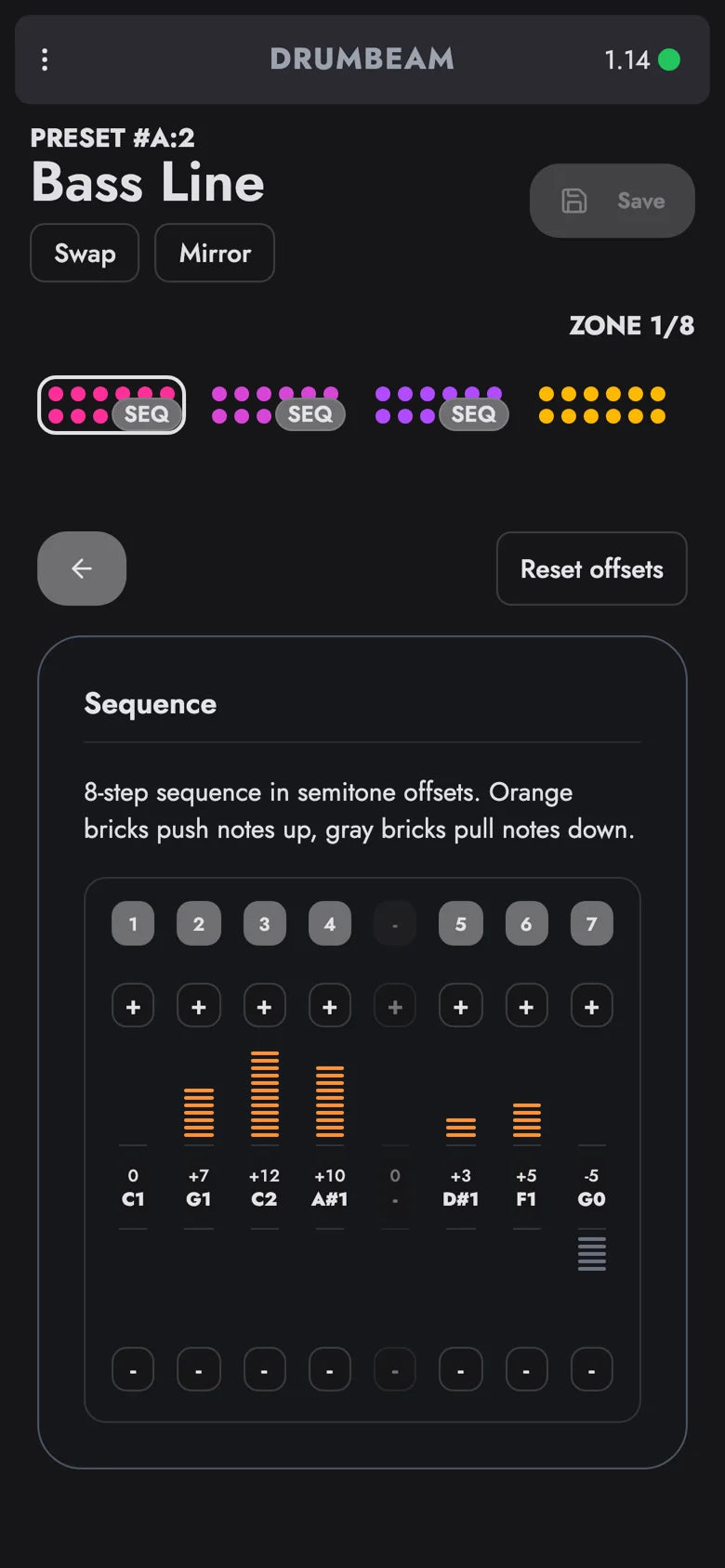
Switch on Enable sequence for this zone, and every hit plays the next step of a sequence of up to 8 steps. Each step sits up to 24 semitones above or below the zone’s note, so one zone walks a bass line while the others keep the beat.

where to find itzone view › sequence

tipOne sequence per preset: each zone that uses it plays it from its own note.

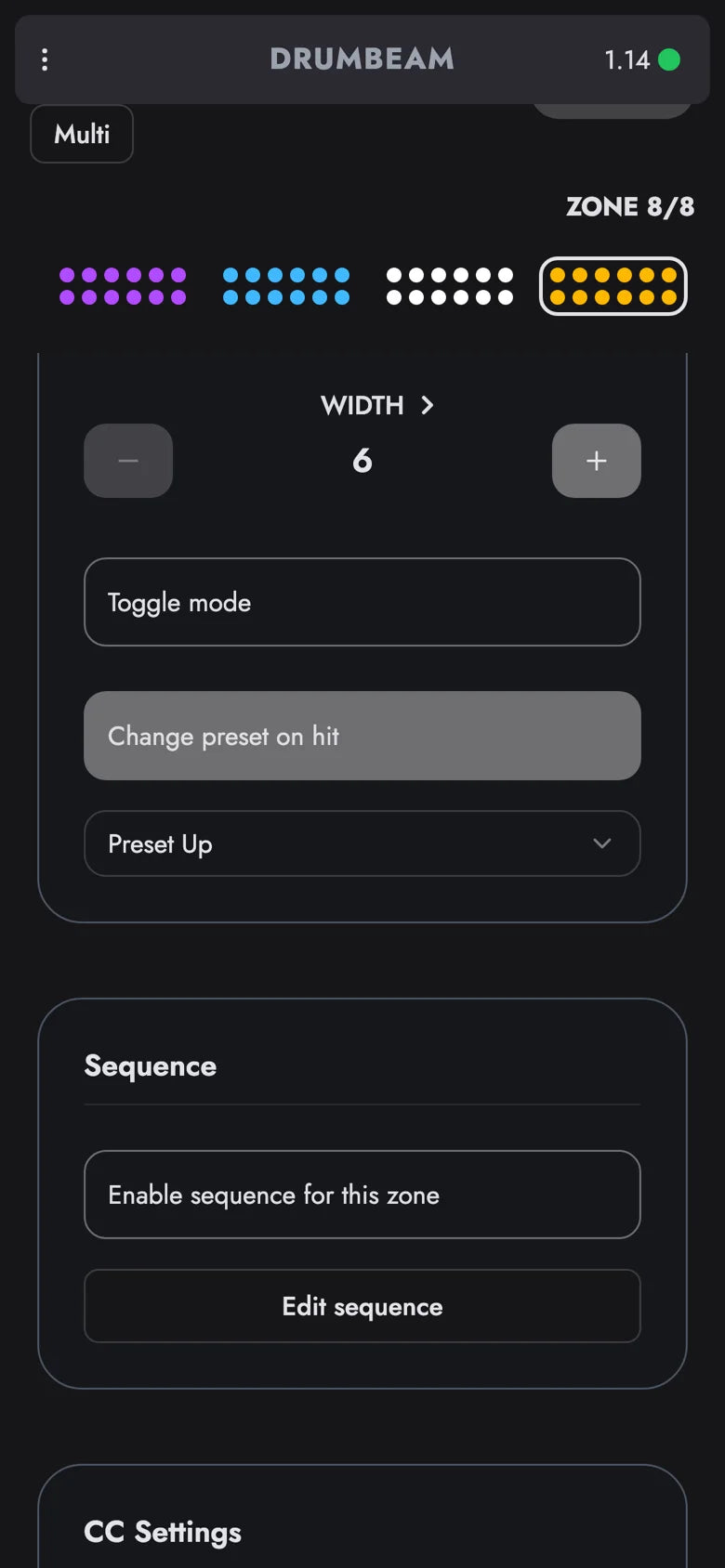
drumbeam app zone settings with the Sequence card: sequence enabled for this zone and an Edit sequence button
drumbeam app sequence editor: eight steps with semitone offsets for the bass line preset, one step switched off

02preset switch

change songs with your sticks.

Switch on Change preset on hit, and a hit on that zone loads the next preset with Preset Up or the previous one with Preset Down. You move on to the next song mid-set with the sticks still in your hands.

where to find itzone view › basic settings

tipA switch zone belongs to its preset, so give every preset in your set one.

drumbeam app zone settings: Change preset on hit switched on with Preset Up selected

03bank select

change banks without the app.

Briefly press both buttons on drumbeam and all 8 banks light up as zones. Move the highlight left or right with the buttons, or hit the zone of the bank you want.

where to find iton drumbeam › both buttons

tipBe careful: Holding both buttons while you plug in USB-⁠C (powering up) erases all user data!

bank select on drumbeam · bank e highlighted

04toggle mode

on until you hit it again.

With Toggle mode on, one hit turns the zone’s light on and the next hit turns it off. Use the zone to switch an effect in your DAW, and the light shows whether you left it on.

where to find itzone view › basic settings

tipIf a bouncing stick switches it straight back off, raise Pad Dead Time (ms).

drumbeam app zone settings with Toggle mode switched on

05midi in highlight

zones that light on cue.

MIDI In Zone Highlight lights a zone when drumbeam receives a MIDI note on that zone’s channel and note number. Send a clip from your DAW or a pattern from a sequencer, and each note lights its zone.

where to find itsettings › midi › midi in

tipHighlight Side sets which side lights up: User, Audience or Both.

drumbeam app MIDI settings: MIDI In Zone Highlight switched on, highlight side set to both

06program change

your synth follows the preset.

Switch on Send Program Change on preset load, and the preset sends a Program Change on its own MIDI channel when it loads, with Bank MSB and LSB if your synth uses banks. Load another preset on drumbeam, and your synth or DAW follows with the matching sound.

where to find itpreset view › midi program change out

tipProgram runs from 0 to 127, and many synths number their sounds from 1.

drumbeam app preset settings: send Program Change on preset load, channel 3, bank LSB 2, program 12

07multi edit

all your toms in one edit.

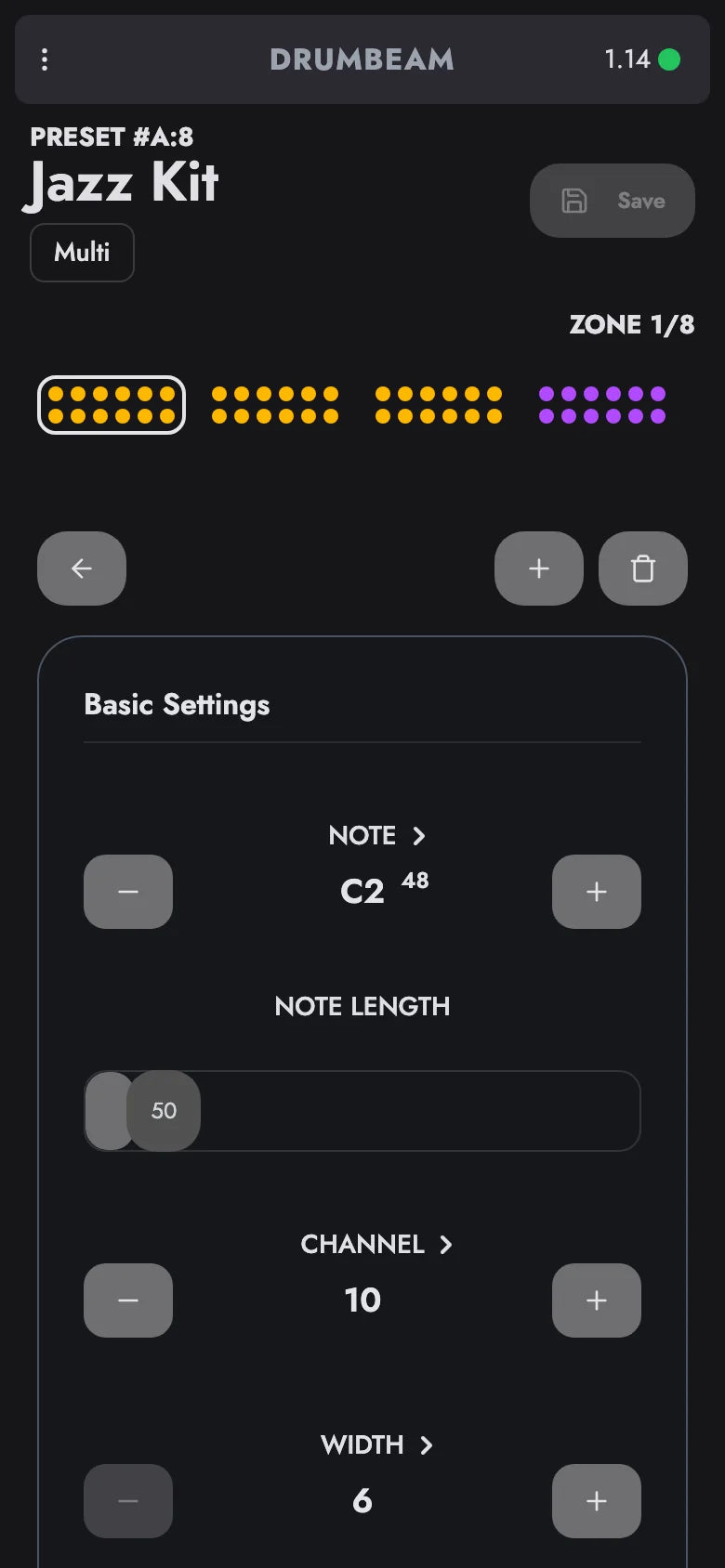
Tap Multi, add zones or tap Select all, and every change applies to all selected zones. Give your three tom zones one color, or put all your hi-hats on the same channel.

where to find itzone view › multi

tipWidth and the trash button act on one zone only.

drumbeam app: Multi selects three zones and one colour change applies to all three

08swap zones

put the snare where you hit.

Tap Swap, then two zones, and they trade places on drumbeam. Your snare zone moves to where your stick lands and keeps its note, channel, colors and width.

where to find itpreset view › swap

tipTo cancel after the first zone, tap Swap again.

drumbeam app: Swap is switched on, then two zones are tapped and trade places

09mirror

left becomes right.

Mirror reverses the order of all zones in the preset, and every zone keeps its settings. 

where to find itpreset view › mirror

tipTap Mirror again to get the original order back.

drumbeam app: Mirror reverses the order of the zones, a second tap restores it

10pad dead time

one hit, one trigger.

Pad Dead Time (ms) sets a dead time of 0 to 200 ms after each hit, so a bouncing stick no longer counts twice. It matters most on toggle and preset switch zones.

where to find itsettings › sensitivity

tipOne value applies to all zones, so keep it low for fast rolls.

drumbeam app sensitivity settings with the Pad Dead Time slider at 30 ms

the smaller changes.

  • The app is faster and more stable, and reconnects on its own if the connection drops.
  • Fixed: zones sometimes changed color on fast hits.
  • Minor fixes and UI polish. Segments, for example, are now called zones throughout the app.

update to 1.14.

v1.14 · 2026 · september

before you flash

It's always a good idea to be on the safe side and back up your presets before an update: open the menu, go to Library, tap the download button and choose Export All Banks to save all 64 presets in one .beam file. If your app has no Export All Banks, export each bank you use.

  1. Hold the inner button (B) while you connect drumbeam to your computer over USB-⁠C.
  2. The LEDs turn green and drumbeam shows up as a drive.
  3. Drop drumbeam_1.14_release.uf2 on that drive.
  4. The LEDs blink yellow. Keep the cable in until drumbeam restarts by itself.

questions about 1.14.

how do I see which firmware I have?

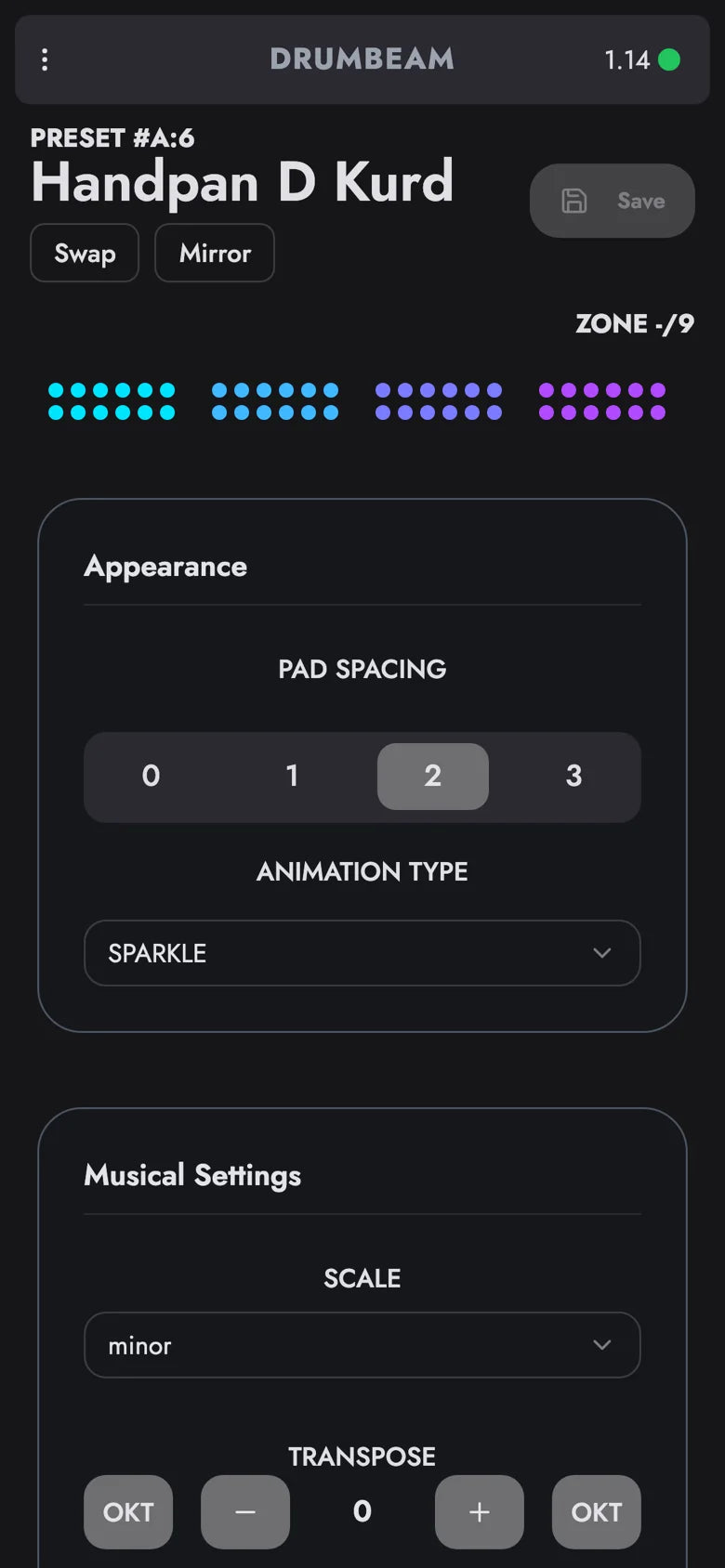
Open the config app. The version number is in the top bar next to the connection dot and reads 1.14 after the update.

my browser still shows the old app. what now?

Reload the app at drumbeam.local, or at your Wi-Fi name plus .local if you renamed the Wi-Fi, for example klangstab.local. If the top bar still doesn’t show 1.14, clear your browser’s cache for the page and open it again.

where is the idle time setting for zones?

In the app it’s called Pad Dead Time (ms), under Settings › Sensitivity. It’s one value for every zone in every preset. Trigger Idle Time (ms) on the same page is a separate setting for the trigger input.